INTRODUCTION TO VIEWING THE SKILMATCH LOCKBOX CASH RECEIPT
FILE FOR ERROR ANALYSIS
This option allows you to view (on your screen, not as a report in your outq) the contents of the lockbox file (after it has been retrieved from the bank and uploaded from the PC to the AS/400) for error analysis. You will view the file in the bank-specific file format (before it has been converted to the SkilMatch-standard file format).
If errors are found in your Preliminary Edit of xxx Lockbox, viewing this file might prove helpful as you interface with your bank. It may also be necessary to interface with SkilMatch to resolve the problem (bank may have changed their format, etc.).
HOW TO VIEW THE SKILMATCH LOCKBOX CASH RECEIPT FILE FOR ERROR
ANALYSIS
To begin,
on the “Accounts Receivable Master” menu, click [Transactions].
The
screen will display:
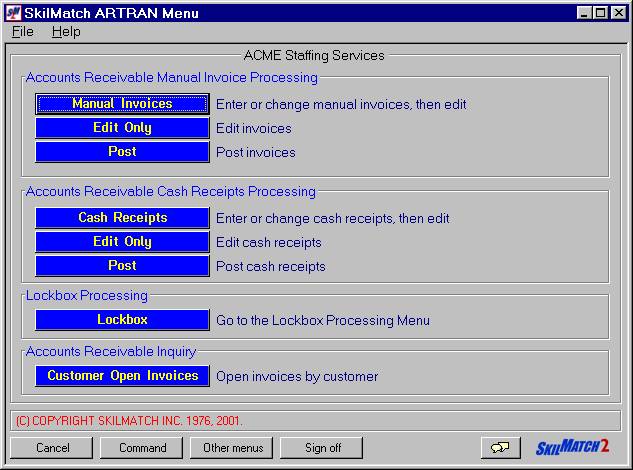
Click [Lockbox].
The
screen will display:
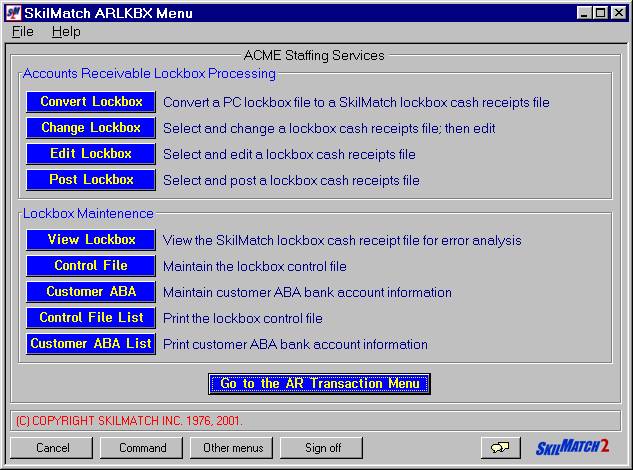
Click [View Lockbox].
The screen will
display:
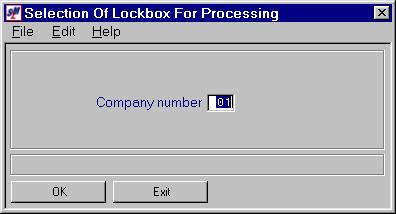
Company Number:
Defaults to company 01. If you wish to view a lockbox for a different company, key the desired company number.
To NOT continue, click [Exit]. You will be returned to the “Accounts
Receivable Lockbox Processing” menu.
To continue, click [OK].
The screen will display:
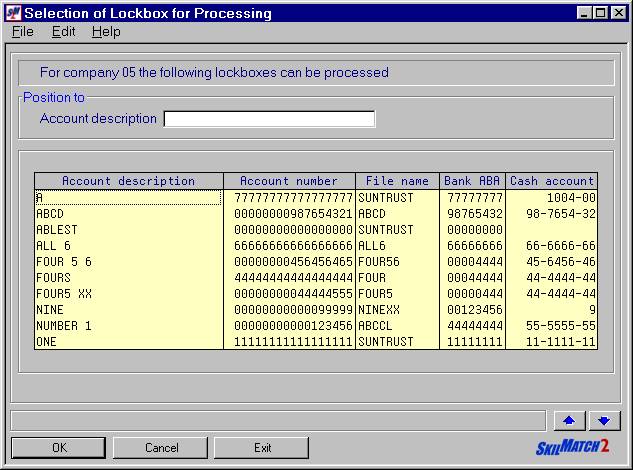
Position To:
If the
desired lockbox does not appear on the first screen, you may <Page
Down> by clicking the  button
OR
You may enter a portion of the account description in the ‘Position
To’ area and click [OK].
To Select The Desired
Lockbox:
To NOT continue, click [Exit]. You will be returned to the “Accounts
Receivable Lockbox Processing” menu.
To select a lockbox for a different company number, click [Cancel]. You will be returned to the previous screen
where you may key a different company number.
To continue, click once on the desired account to highlight it and
then click [OK].
OR
<DOUBLE CLICK> on the desired account to select.
The
screen will display:
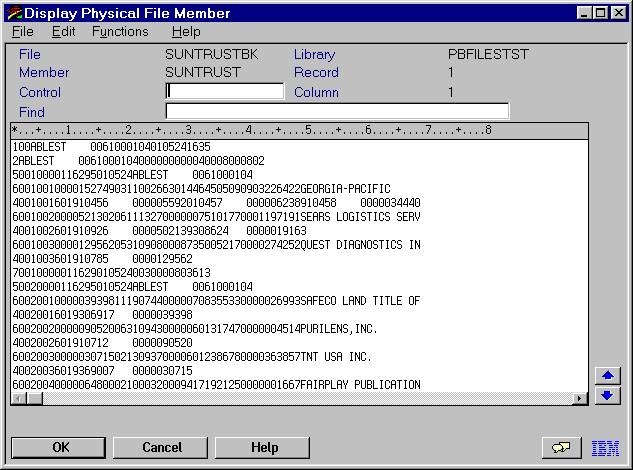
As necessary, <Page Down> or <Page Up> by clicking the appropriate button  .
.