INTRODUCTION TO THE LOCKBOX CONTROL FILE
Before using the
SkilMatch lockbox processing options, the lockbox control file must be set up
for each company number/bank account number that will have lockbox
processing. Data from this control file
is used with Menu ARLKBX, Item Convert Lockbox.
HOW TO MAINTAIN THE LOCKBOX CONTROL FILE
To begin,
on the “Accounts Receivable Master” menu, click [Transactions].
The
screen will display:
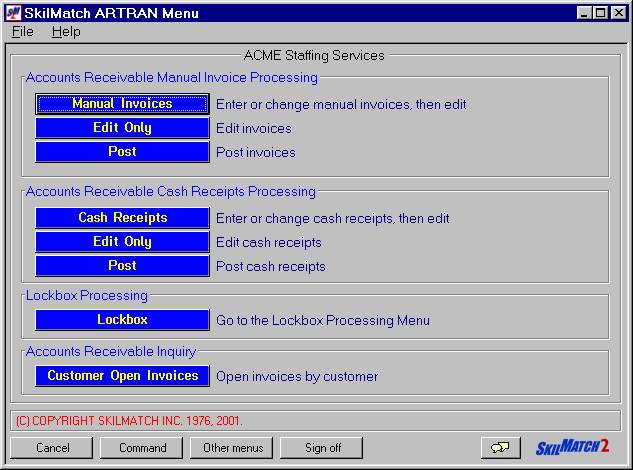
Click [Lockbox].
The
screen will display:
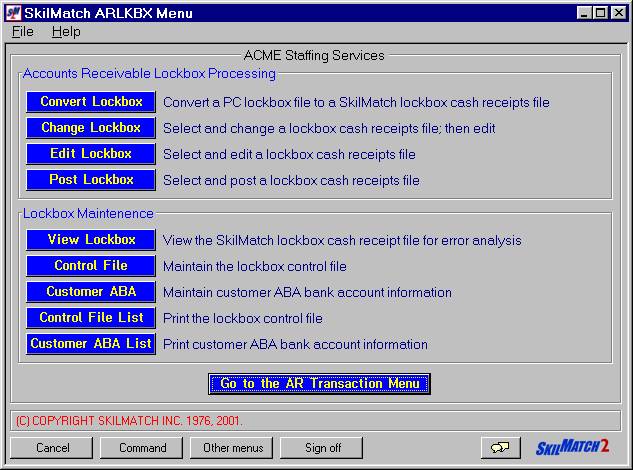
Click [Control File].
The screen will
display:
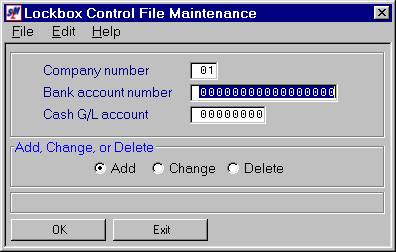
Company Number:
Defaults to company 01. If you wish to maintain a lockbox for a different company, key the desired company number.
Press the
<TAB> key for additional keying.
Bank Account Number:
Key the desired bank account number.
This is the account number assigned to your account by the bank.
Press the
<TAB> key for additional keying.
Cash G/L Account:
Key the cash G/L account associated with this bank account
number. This is the SkilMatch general
ledger account number you want to use with the specified bank account number.
Press the
<TAB> key for additional keying.
Add, Change, Delete:
Defaults to add. If you wish
to change a lockbox control file already set up, click once on change to select
(a black dot will appear next to your selection). If you wish to delete a lockbox control file already set up,
click once on delete to select (a black dot will appear next to your
selection).
To NOT continue, click [Exit]. You will be returned to the “Accounts
Receivable Lockbox Processing” menu.
To continue, click [OK].
If you select to delete, the screen will display:
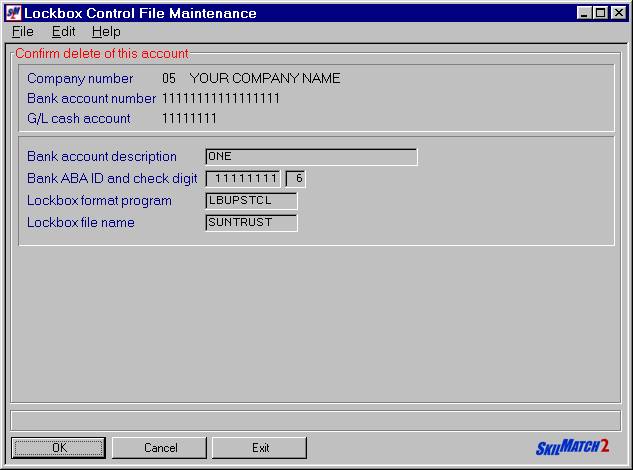
To NOT continue, click [Exit]. You will be returned to the “Accounts
Receivable Lockbox Processing” menu.
To continue, click [OK].
If you select to add or change, the screen will display:
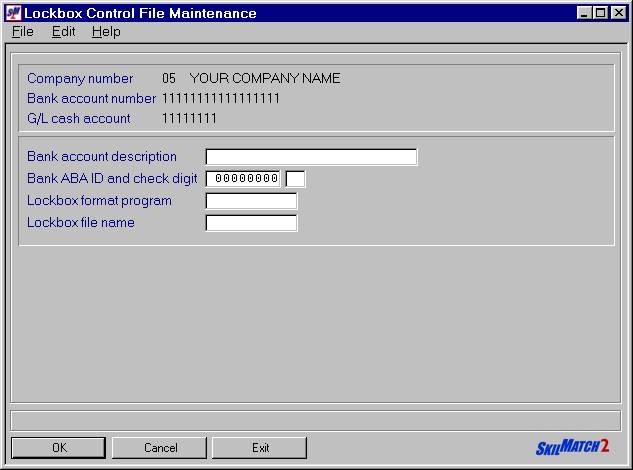
Bank Account
Description:
Key a description that
will be meaningful in helping you to identify this bank account when you see a
list of accounts.
Press the
<TAB> key for additional keying.
Bank ABA ID And Check
Digit:
Key the 8-digit bank
ABA ID and the 1-digit check digit (this information will be provided to you by
the bank).
Press the
<TAB> key for additional keying.
Lockbox Format Program:
Key the format program
name provided to you by SkilMatch. This
program is custom-written to the bank’s specific file format. This program also contains the PC file name,
which may need to be unique lockbox-to-lockbox.
Note: multiple lockbox files from the same bank may each require unique format programs; do not assume you can use the same format program for another lockbox from the same bank.
Press the
<TAB> key for additional keying.
Lockbox File Name:
Key the lockbox file name provided to you by SkilMatch. This is the name of the file on the AS/400 that contains the lockbox records uploaded from the PC (in the bank-specific file format before being converted to the SkilMatch-standard file format).
To NOT continue, click [Exit]. You will be returned to the “Accounts
Receivable Lockbox Processing” menu.
To maintain a lockbox for a different company number, click [Cancel]. You will be returned to the previous screen
where you may key a different company number.
To continue, click [OK]. All changes and new entries will be saved.