ACCOUNTS RECEIVABLE FILE MAINTENANCE:
System file
Use this option to set up defaults for use throughout the various Accounts Receivable programs. The defaults established on the System file are used during entry of manual invoices and cash receipts. Also, the aged columns on Ageing reports, statements and reminder letters are set up on the System file. In addition, the G/L account numbers used in the posting of invoice late fees, and the over or under payment of invoices are maintained on the System file. Finally, if your organization uses the ‘Lockbox’ Cash Receipt interface, certain Lockbox defaults are maintained on the System file.
To begin, select [Receivables] from the left column of any Master menu.
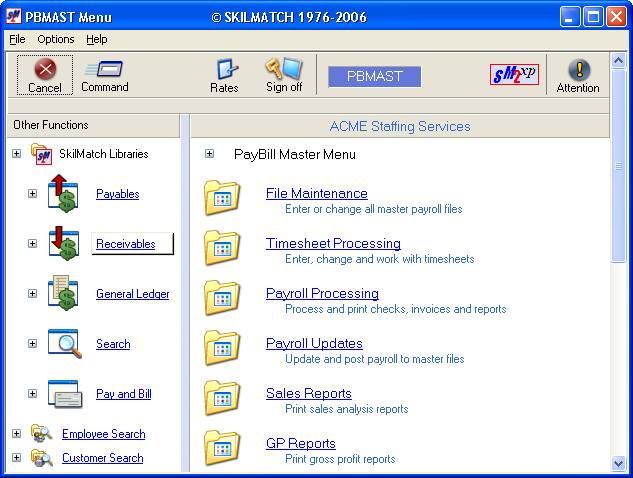
From the Accounts Receivable Master menu, click [File Maintenance].
The screen will display:
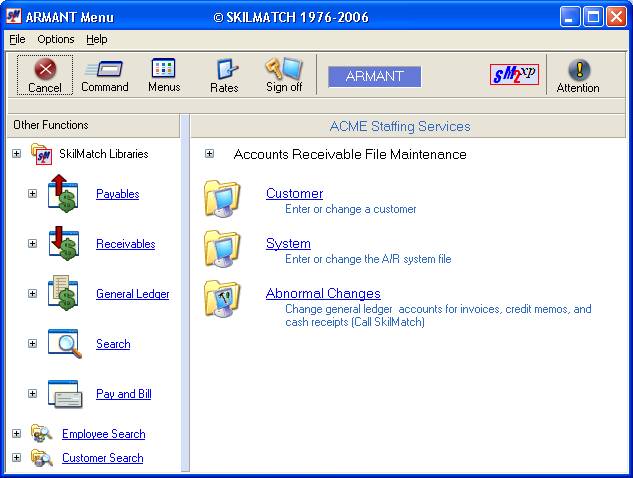
To continue, click [System].
The screen will display:
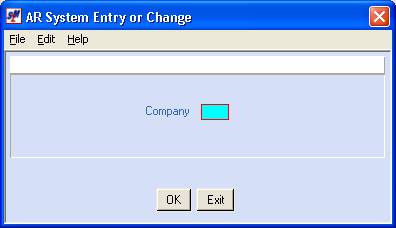
Company Number:
Key the desired company number.
To continue, click [OK].
OR
To NOT continue, click [Exit].
If you chose to continue, the screen will display:
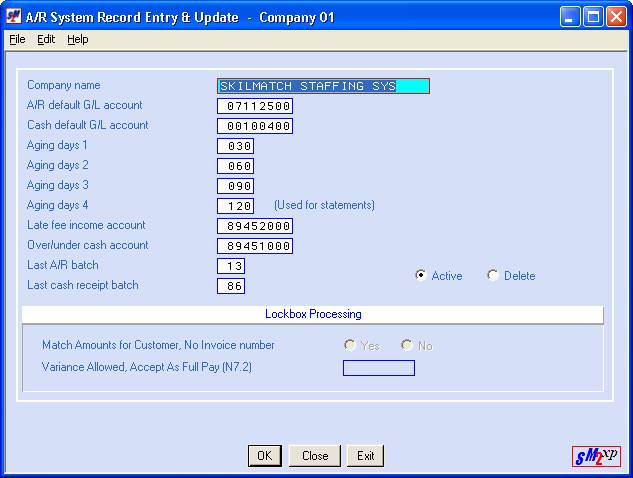
Company Name:
Key up to 25 characters of your company’s name. This name will appear on all A/R reports.
A/R Default G/L Account:
The system uses this general
ledger account number for 2 purposes – (1) as a ‘default’ prepayment A/R
account during Cash Receipt data entry, and (2) as a default A/R account for
manually entered invoices. (Invoices
produced during payroll use the A/R account number from the job order Labor
Distribution file.) Key a valid 8-digit
general ledger account number.
Cash Default G/L Account:
The system uses this general ledger account number as the default cash account that receives this company's cash receipts. This number will display on the initial screen during Cash Receipt data entry.
Ageing Days 1:
Key the number of days that this company considers "current" in the ageing of accounts receivable. This number will be used both for computation and for headings.
Ageing Days 2:
Key the number of days to age the second column of accounts receivable. (This number must be greater than ageing days 1.) This number will be used both for computation and for headings.
Ageing Days 3:
Key the number of days to age the third column of accounts receivable. (This number must be greater than ageing days 2.) This number will be used both for computation and for headings.
Ageing Days 4:
Key the number of days to age the fourth column of accounts receivable. (This number must be greater than ageing days 3.) This number will be used both for computation and for headings of statements only.
Late Fee Income Account:
An optional part of the payroll process is the billing of late fees on customer invoices. If a late fee is included on a customer invoice, and gets paid during cash receipts entry, the system will post the late fee portion of the cash receipt to the Cash Receipt Income account that is located in this area. All late fees post to a single G/L income account. Key a valid 8-digit G/L account number that should receive the late fee income.
Over/Under Cash Account:
When a cash receipt is entered, the system compares the amount entered against the amount currently outstanding on the invoice. If the amount is over or under the amount due, the system will offer the option of accepting the cash receipt as full amount of the invoice, and will post the difference to the designated ‘Over/Under’ account. Key a valid 8-digit G/L account number that should receive the over/under cash.
Last A/R Batch:
The
system keeps track of the last A/R Invoice batch number used. Do not enter data in this area and do not
change this area.
Last Cash Receipt Batch:
The
system keeps track of the last Cash Receipt batch number used. Do not enter data in this area and do not
change this area.
Record Activity:
If this is an active system file, leave active selected (a black dot appears next to the selection).
OR
If you wish to delete this system file, select delete (a black dot appears next to the selection).
Lockbox Processing
(You will only
have access to this area if you have purchased the Lockbox interface, and it
has been activated on your system)
Match Amounts for Customer, No Invoice Number:
If a lockbox record is received without an invoice number, do you want the system to search invoices for the customer to find an open invoice with an amount that matches the amount in the lockbox record?
Click Yes to select this area (a black dot will appear next to your selection).
OR
Click No (a black dot will appear next to your selection).
Variance Allowed, Accept As Full Pay (N7.2):
If a lockbox payment is received, but does not match exactly the amount due on the invoice, use this area to designate the maximum amount over or under the amount due to be accepted as full payment of the invoice, rather than being posted as a partial payment.
This is a 7-digit area, with 2 digits to the right of the decimal. Key $2.00 as 200, or 50 cents as 50.
Example: If you wish to accept any payment within 50 cents above or below the outstanding invoice amount as full payment of the invoice, key 50. If a payment is received that is 51 cents above or below the outstanding amount, then the payment will be posted as a partial payment, and left as outstanding.
If you do NOT wish to allow variances (you do not wish to accept any amount other than the exact amount due as full payment), leave zeroes displayed in this area. Underpayments will leave a balance due on the invoice; overpayments will leave a credit balance due on the invoice.
When you have completed updating this screen, click [OK].
OR
If you do NOT wish to process this screen, and wish to try again, click [Close].
OR
If you do NOT wish to keep changes made to the System file, and wish to return to the ‘Accounts Receivable File Maintenance’ menu, click [Exit].
To enter or change an A/R system file for another company number, repeat the steps outlined above.
OR
When you have finished updating the System file(s), click [Exit]. You will return to the ‘Accounts Receivable File Maintenance’ menu.