BEGIN THE WEEKLY PAYROLL CYCLE
Every payroll that is processed in SkilMatch must complete a series of steps that comprise a “cycle”. A payroll “cycle” starts with the “Begin Cycle” step, and ends with the “Bonus Update” step. The “Begin Cycle”, as the first step in the payroll process, performs numerous procedures simultaneously:
1) An internal “monitor” is checked to make certain that all payroll update steps were processed during the previous payroll.
2) The “merged” time sheet file from the previous payroll is deleted.
3) The system verifies whether or not you are using Cumulative billing, and if so, the
current status of the Cumulative billing file.
4) Any payroll advance check data that has been entered but not posted is deleted.
5) The Payroll “Constant
file” displays for setting up the defaults for this payroll.
If you select the Begin Cycle, and the system finds that any payroll update steps were not completed from the previous payroll, then the Begin Cycle will stop, and a message regarding the first missed update step will be displayed.
The following is a list of the different features described in this documentation:
Current
1 Week Prior
2 Weeks Prior
3 Weeks Prior
First Check
Check Date
Deductions
Check Message Line 1
Check Message Line 2
Beginning Invoice
Invoice Date
Invoice Message
Invoice Sequence
Late Fee %
Late Fee Date Due
Check Sequence
Check Register Sequence
Payroll Journal Sequence
To begin, on the “PayBill Library Master” menu, click [Timesheets].
The screen will display:
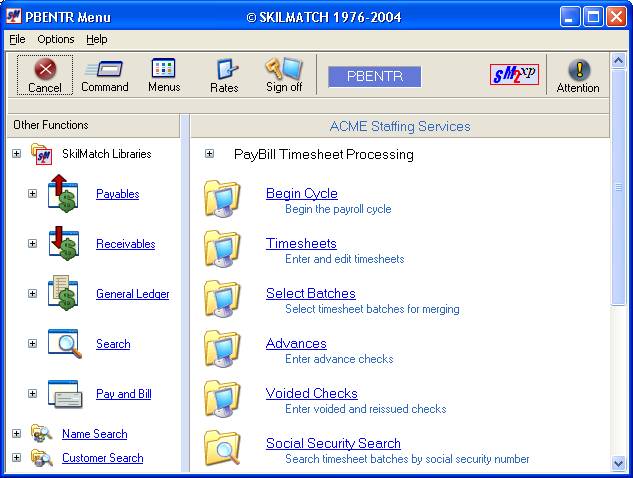
Click [Begin Cycle].
The screen will display:
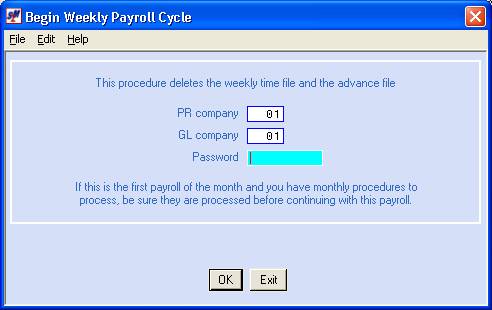
If you click [Exit] or (F7) from this screen, then the Begin Cycle will be canceled, and none of the automatic procedures will process. Once you have completed this screen and click [OK] or pressed [enter], however, the automatic procedures will begin unless the system detects an error and cancels itself. Choosing to exit or (F7) from the Payroll Constant File screen does NOT stop the automatic procedures from processing!,
PR Company
The payroll company contains the employees, jobs, and customers. The system defaults to payroll company 01. If you need to process payroll for a different payroll company, move your cursor and key the desired payroll company number.
GL Company
The G/L company contains the account numbers used for the automatic journal entries. The system defaults to general ledger company 01. If you wish to process payroll for a different general ledger company, move your cursor and key the desired general ledger company number. Most SkilMatch customers use the same company for both PR and GL. The only ones who do not are probably using a common paymaster to pay multiple companies, but keep separate books for the different company numbers.
Password:
A password is required to begin
a cycle – not for the sake of security, but as a safeguard against accidental
selection of this option. Because the
“Begin Cycle” processes so many steps, the password helps insure that users
think twice about what they are doing.
Key the password for the general ledger company displayed above. If you do not know the password, refer to
document Menu PBMANT, Item Payroll System
Requirements.
First payroll of the month
Please check with your accounting department to verify whether or not your company has taxes and/or reports that are based on monthly rather than quarterly or annual reporting. If you do have monthly reporting requirements, and you have completed the final payroll of the month, you must process those steps BEFORE beginning the cycle for a payroll in the new month. To not proceed and return to the “PayBill Library Master” menu, click [Exit].
The screen will display:
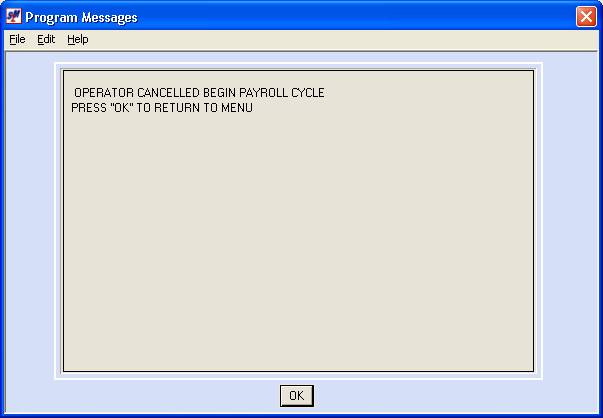
Click [OK] to continue. You will be returned to the “PayBill Library Master” menu.
If you chose to proceed, the system will check the monitor to make certain that all of the options on the “Payroll Update” menu were processed.
If any one of these options has not been processed, you will get an error message that reads:
PAYROLL FOR THIS COMPANY IS NOT COMPLETED.
If no updating at all has been processed, the screen will display:
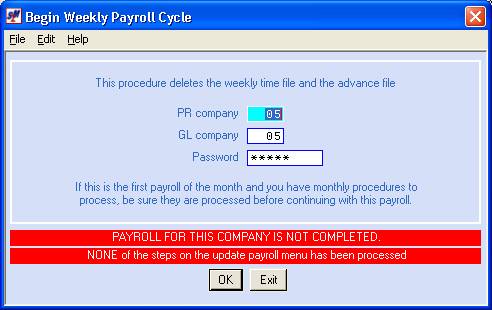
If you skipped ONE of the “Payroll Update” menu options, the system will describe which option was skipped.
If you skipped MORE THAN ONE option, you will only be informed of one item at a time. Subsequent attempts to process a begin cycle will provide additional error messages.
If NO update steps were processed, the system will message you to that effect. This would normally occur because you ran a partial payroll to get net pay figures for an advance check, or did a begin cycle to process a social security merge. If you are certain of the reason no updating at all was performed since the last begin cycle was processed, then you may go to the “Abnormal Functions” menu and process an [Abnormal Begin].
Cumulative Billing Valid For
This Company:
If the cumulative billing feature is not active for this G/L company number, proceed to the section General Ledger Company Number.
If this company number is using cumulative billing, then depending on the status of the cumulative billing cycle, one of the following screens will display:
Cumulative billing cycle completed, ready to clear file for new billing cycle:
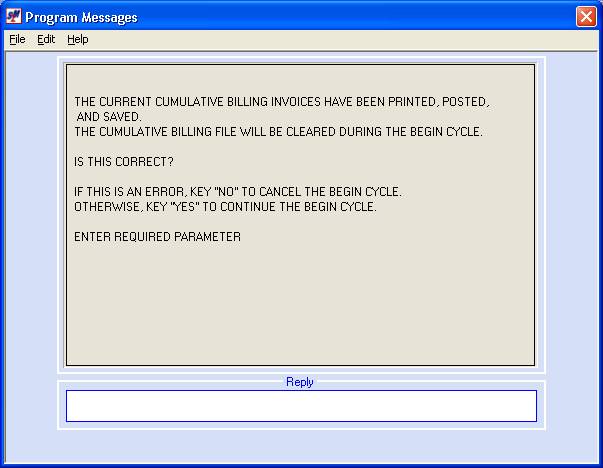
If this screen displays, then you have already finished printing, posting, and saving the Cumulative Invoices for a billing cycle, and the system is ready to clear out the old billing detail in preparation for a new billing cycle. If you are ready to clear the cumulative billing file, key YES and click [OK] to continue the begin cycle process.
If you get the screen displayed above, but do not want the system to clear out the billing file, key NO and click [OK] to cancel the Begin Cycle process, then call SkilMatch to discuss. (This would NOT be a normal situation!)
Cumulative billing invoices not yet printed:
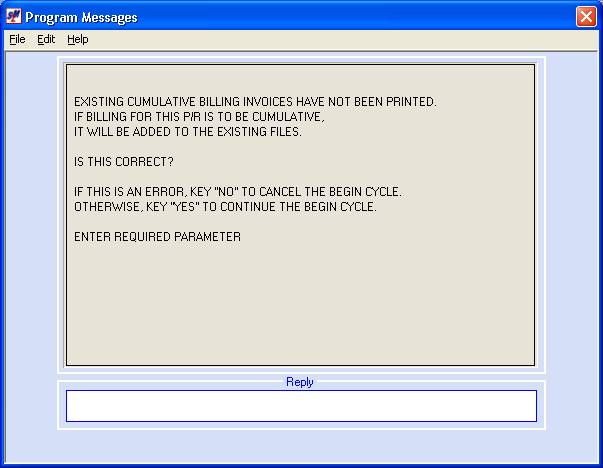
If this screen displays, then there is a file of cumulative billing detail that has not yet been printed. If this is correct, key YES and press [Enter] to continue.
If there is no additional billing to be added to the current cumulative billing file, but the screen above displays, then you should key NO and press [Enter] to cancel the Begin Cycle. You should print, post and save the billing in the current cumulative billing file BEFORE you process a new Begin Cycle.
Cumulative billing not saved:
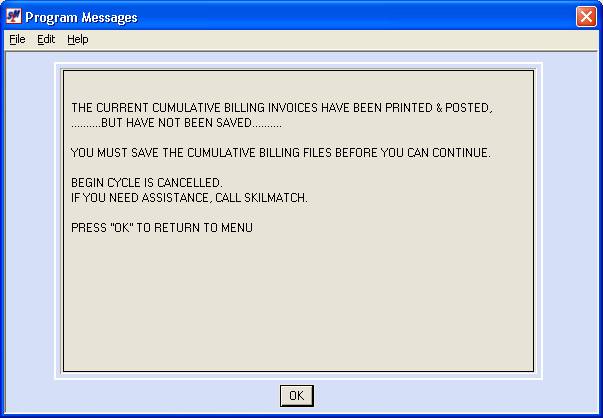
If this screen displays,
then you have begun but not completed the cumulative billing [Invoice] procedures. You must save the cumulative billing files
before processing a Begin Cycle. Click [OK] to return to the menu. Go to the Cumulative billing menu and select [Invoices] so that the
system can save the cumulative billing files.
No current Cumulative billing in process:
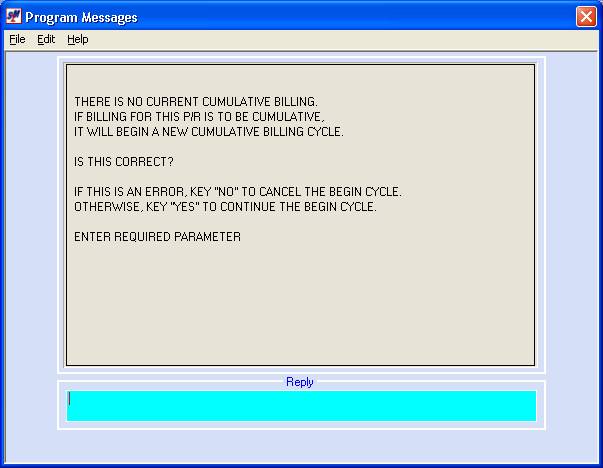
If this screen displays, then either you have just activated Cumulative Billing for this G/L Company, or else you have processed a Cumulative Billing Abnormal Begin cycle, so that the file is already cleared of billing data. If either of these situations has occurred, key YES and press <enter> to continue the payroll Begin cycle.
If Cumulative Billing should NOT be active for this G/L company, key NO and press <enter> to return to menu. Go to the File Maintenance menu, and select the Payroll System Requirements File option to ‘turn off’ the Cumulative billing.
If you were expecting the billing from this payroll to be added to an existing cumulative billing file and find that a cumulative billing file does NOT exist, key NO and click [OK] to cancel the begin cycle. Call SkilMatch support for assistance.
Once the system has checked the internal payroll monitor, and the cumulative billing status, the screen will display:
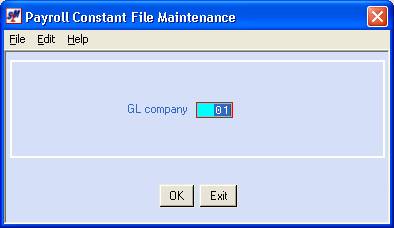
You have now passed the “point of no return”. All of the automatic procedures will continue, even if you choose to exit from this screen. The only process that would be skipped is the updating of the Constant file.
(If you get to this screen and discover you should NOT be starting a Begin Cycle, call SkilMatch for assistance, do NOT click any buttons!
General Ledger Company Number:
The screen will display the general ledger company number entered on the previous screen. If this is correct, click [OK] to proceed. If your company uses a common paymaster (very uncommon) you may need to display the Constant file for a different company number. In that unusual circumstance, key the number, click [OK] to proceed.
The screen will display:
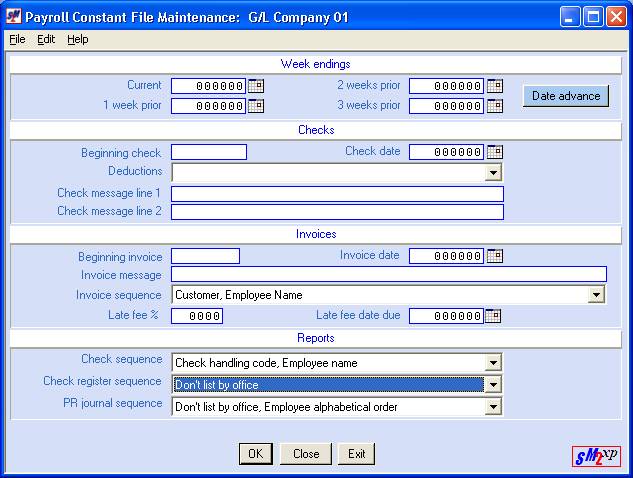
Establishing week-ending (w/e) dates (or period-ending dates) in the Constant file eliminates the need to key the most common dates during timesheet entry. The Constant file requires four different w/e dates - current w/e, 1 week prior, 2 weeks prior, and 3 weeks prior.
If your pay periods are weekly, you may move all dates forward by one week, rather than manually keying or selecting them individually, by clicking the [Date Advance] button on the right side of this section.
Current
1
Week Prior
2 Weeks Prior
3 Weeks Prior
The dates used for the
previous payroll processed for this company will display. To have the system advance each date field by 1 week,
click the [Date Advance] button, or (F10).
OR
Key the desired week ending date into each date field. Each date must be a valid date, and must use the format MMDDYY. Also, each date field must have a date that is earlier than the preceding field, with the CURRENT date being the most future.
OR
Select dates
by clicking the  button (calendar) to the right of dates
throughout SkilMatch2.
The button will display a calendar from which you
may click on a date to select, and then click [OK]
to key the date.
button (calendar) to the right of dates
throughout SkilMatch2.
The button will display a calendar from which you
may click on a date to select, and then click [OK]
to key the date.
Beginning Check
Each time the [Print Check] option is processed, the system will count ahead to the next new check number. Verify that the number displayed is the correct beginning check number for the next [Print Check] option. Depending on the type of printer you use, you may have to change the number to allow for alignment checks that will be wasted.
The system will display the
next sequential check number from the last processing of payroll checks. If this number is not correct, key the
beginning check number for this payroll. Note: remember to take into account any alignment checks wasted by your
particular type of printer.
Check Date:
Key the check date for this payroll.
OR
Select the
date by clicking the button (calendar) to the right of dates
throughout SkilMatch2.
The button will display a calendar from which you
may click on a date to select, and then click [OK]
to key the date.
Deductions:
Rather than keying deductions directly onto timecards, you may set up individual employee deductions ahead of time using the File Maintenance menu, Item Employee Deductions. Each deduction is assigned a Frequency of 1,2,3 or 9. SkilMatch does not dictate the meaning of each frequency (every payroll, once per month, one-time only, once per quarter). It is important that your organization select a meaning for each frequency, and to be consistent in the use of the frequencies.
Selecting a frequency for the
current payroll process will cause the system to withhold certain deductions,
and to ignore other deductions. Use the
 button (prompt and select button) to the
right of deductions to select from these options:
button (prompt and select button) to the
right of deductions to select from these options:
(1) Withhold type 1 deductions only.
(2) Withhold type 2 deductions only.
(3) Withhold type 3 deductions only.
(4) Withhold type 1 and type 2 deductions.
(5) Withhold type 1, type 2 and type 3 deductions.
(6) Withhold type 2 and type 3 deductions.
(7) Withhold type 1 and type 3 deductions.
(9) Do not withhold any automatic deductions.
Check Message Line 1:
You may have the system print a message to employees at the bottom of each paycheck stub. There are 2 lines that have 40 characters each. Key the first line of the message in the Check Message line 1.
The system will retain this message in the Constant file and will display it for updating each time the ‘Begin Cycle’ is processed. Since this message is kept on file, we recommend you use a standard or generic message that would appropriate for most payrolls. Then, if you want to use a more specific or seasonal message for one payroll you should wait and make the one-time change when you select the print check option (refer to Menu Payroll Processing, Item Checks). Changing the check message during the print option will NOT make a permanent change to this check message. Permanent changes must be made to the Constant file.
Check Message Line 2:
You may add a second message line to the bottom of each paycheck stub. This line also holds up to 40 characters. The system will retain this message each time the ‘Begin Cycle’ is processed. You will be given an opportunity to make a one-time change when you select the print check option (refer to Menu Payroll Processing, Item Checks). Changing the check message during the print option will NOT make a permanent change to this check message. Permanent changes must be made to the Constant file.
The system will display the next sequential invoice number based on the last batch of invoices that were processed. There are two circumstances in which this number would not be correct. 1) if invoices were produced manually and posted directly into Accounts Receivable, 2) if you processed the print Invoice option, answered NO to post, and reprocesses again. In either case, you will need to manually key the correct starting invoice number. Please refer to your binder of printed Accounts Receivable Registers to verify the next invoice number.
Note: Since invoices are not pre-numbered, you do not have to worry
about skipping a number for an ‘alignment’ invoice.
Note: you will be given an opportunity to verify/correct the invoice number when you select the print invoice option (refer to Menu Payroll Processing, Item Invoices).
Invoice Date:
The system will display the last invoice date entered.
The invoice
date may be keyed (without punctuation) or may be selected by clicking the button (prompt and select button) to the
right of dates throughout SkilMatch2. The button will display a calendar from which you
may click on a date to select, and then click [OK]
to key the date.
Note: you will be given an opportunity to verify/correct this date when you select the print invoice option (refer to Menu Payroll Processing, Item Invoices).
_________________________________________________________________________________
This is normally as far as you need to go. The remainder of the screen usually stays the same.
Invoice Message:
You may have the system print a message to customers at the bottom of each invoice. Key up to 53 characters. This message will be superceded if the system needs to print sales tax or late fees on the invoice page. Otherwise, the message will print exactly as entered, so use upper and lower case accordingly.
The system will retain this message in the Constant file and will display it for updating each time the ‘Begin Cycle’ is processed. Since this message is kept on file, we recommend you use a standard or generic message that would appropriate for most payrolls. Then, if you want to use a more specific or seasonal message for one payroll you should wait and make the one-time change when you select the print invoice option (refer to Menu Payroll Processing, Item Invoices). Changing the invoice message during the print option will NOT make a permanent change to this invoice message. Permanent changes must be made to the Constant file.
Invoice Sequence:
The Invoice Sequence you select will control the order in which the invoices will print. Some of the choices will also contribute to the sorting of timecards on the invoices. Please read the following Overview before making your Invoice Sequence selection.
Overview of Customer Invoicing:
There are choices on several menu options that control customer invoicing. The choices you make will control the selection of jobs that will print on an invoice, the order in which the employees print on an invoice, and the number of separate invoices that a given cuscode will receive. These choices appear as selections on the following menu options:
Invoice Handling method (selected in the Payroll System Requirements file),
Invoice Sequence (selected in the Payroll Constant file),
Sort Sequence (selected in the customer file),
Invoice Format (selected in the customer file),
Certain functions used during timesheet entry
First Sort: The Invoice Handling code will always be the primary sort, if this method is “turned on” in the Payroll System Requirements file.
Second Sort: The job order Branch will be the next sort to occur, should you select an Invoice Sequence below that includes Branch office.
Third Sort: The system will sort the timecards into groups by cuscode (a customer group with multiple cuscodes will receive a minimum of 1 invoice per cuscode).
Fourth Sort: Within a cuscode, the system will sort the timecards into groups by the job order Division, for any of the Invoice Sequence selections except the Streamline invoicing (see numbers 5 & 10).
Fifth Sort: Within Division, the timecards will sort into groups by job order Class.
Sixth Sort: The system will look next to the customer file for invoicing instructions. The customer’s Invoice Sort method (job department, attention-to line, subtotal by dept) is applied to the timecards, then the Invoice format (1 job per invoice, multiple jobs on a single page, multiple jobs/multiple page).
Seventh Sort: Next come instructions from the timecard itself. A credit memo timecard will print on an invoice by itself. If the =2= sort (refer to document Menu PBENTR, Item Timesheets for additional information on this feature) has been used, then the system will group together identical =2= sorts.
Final Sort: The final sort applied to the timecards looks to the Invoice Sequence selection in the Payroll Constant file for instructions in printing the employee names – either in alphabetical order, or in job number order.
Use the button (prompt and select button) to the
right of Invoice Sequence to make a selection from these choices:
(1)
Customer, Division, G/L Class, Job Number.
(2)
Division, G/L Class, Customer, Job Number.
(3)
Customer, Division, G/L Class, Employee Name.
(4)
Division, G/L Class, Customer, Employee Name.
(5) Customer,
Employee Name (referred to as ‘streamlined invoicing’). The
customer gets one invoice
regardless of the number of branch/division/class combinations on that
customer’s jobs).
Options
1-5 do not sort by Job branch office.
Therefore, even if a customer code has multiple job orders, each with
different branch offices codes, those jobs will appear on the same invoice. While the system will post the income and
payroll expense of each job order to the account numbers designated by the
job’s Labor Distribution, the invoice amount will NOT be separated. Instead, a single total invoice amount will
be posted to a single A/R account. The
A/R account used is picked up from the Labor Distribution of the LAST job
printed on the invoice. If you have
multiple branch offices, you may wish to select from Options 6-10.
(6) Office, Customer, Division, G/L Class, Job Number.
(7) Office, Division, G/L Class, Customer, Job Number.
(8) Office, Customer, Division, G/L Class, Employee Name.
(9) Office, Division, G/L Class, Customer, Employee Name.
(10) Office, Customer,
Employee name (referred to as ‘streamlined
invoicing’).
The customer gets one invoice per
branch regardless of the number of branch/division/class combinations on that
customer’s jobs).
“Office”
refers to the branch office in the job
order file.
Note: options (8) and (10) are the most commonly
selected invoice sequence options.
Late Fee %:
To use
this feature, you must be using either Create-a-Check for your invoicing, or a
pre-printed invoice form that has the large box on the bottom. The BILL LATE FEES feature in the Payroll
System Requirements file must be “turned on”.
Late fees will be charged only to customers whose customer file has the
Late fee box checked.
Late fees are calculated as a percentage of the total invoice amount. Key the percent to be assessed. DO NOT KEY A DECIMAL POINT, BUT DO KEY ZEROES TO HOLD DECIMAL PLACES! (Example: 2% keyed as 200; 1.5% keyed as 150). This will produce a line on the invoice that reads: TOTAL WITH LATE FEE. If the customer’s file has a designated late fee percentage, then the Constant file percentage will be ignored.
Late Fee Date Due:
If you are NOT assessing a late fee, leave this area blank.
If you are assessing a late fee, key a late fee date. This date should be the last day that the invoice can be paid WITHOUT the late fee being due.
OR
Select dates
by clicking the button (prompt and select button) to the
right of dates throughout SkilMatch2. The button will display a calendar from which you
may click on a date to select, and then click [OK]
to key the date.
A Late fee invoice will
have three lines that read:
TOTAL WITH LATE FEE -à $___
(PAY TOTAL WITH LATE FEE AFTER-àDDMMYY)
IF PAYMENT IS MADE BEFORE DUE DATE ABOVE, PLEASE PAY-à $___
Check Sequence:
Determines the order in which
the checks will print. Use the button (prompt and select button) to the
right of check sequence to select from these options:
(1) The order in which the timecards were keyed into
batches, and the order in which the batches were merged
(2) Employee
last name
(3) By check handling code, then by Employee last name
(4)
Employee Branch Office, then by order merged
(5) Employee
Branch Office, then Employee name
(6) Employee
Branch Office, then Check handling
code, then Employee last name
Determines whether the system will produce a single check register with the checks listed in sequential numeric order, or whether the system will produce multiple check registers – one per Job Branch office - with only the checks for the branch listed on the individual reports.
Use the button (prompt and select button) to the
right of check register sequence to select from these options:
(1) List by
office
(2) Don’t list by office
P/R Journal Sequence:
Determines whether the system will produce a single payroll journal with the employees listed in alphabetical or social security number order, or whether the system will produce multiple journals – one per Job Branch office - with only the employees for the branch listed.
Use the button (prompt and select button) to the
right of check register sequence to select from these options:
(1) List by Job Branch office, Employee alphabetical order
(2) List by Job Branch office, Social security number
(3) Employee alphabetical order
(4) Social security number
If you prefer to NOT proceed but you wish to try again, click [Close]. Any changes will not be made. The Begin Cycle will still proceed, even though the Constant file is not changed. You will see several "delete procedures" running before you return to menu.
Click [Exit] to ignore the changes you made and return to the “PayBill Library Master’ menu. The Begin Cycle will still proceed, even though the Constant file is not changed. You will see several "delete procedures" running before you return to menu.
If you wish to proceed with the changes made, click [OK].
The screen will display:
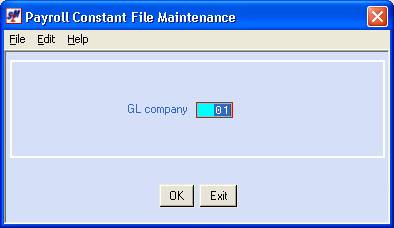
If all options for this payroll were set correctly on the detailed screen, click [Exit]. Your changes will be made and you will be returned to the “PayBill Library Master” menu.
If all options for this payroll were NOT set correctly on the detailed screen and you wish to return to the detailed screen, click [OK].
If you need to make changes to an additional company’s Constant file, key the company number and click [OK].
You will see several "delete procedures" messages display on the screen before you return to menu.